Set up Shopify using custom apps
Learn how to set up the Shopify integration using the custom apps approach to merchant data connection
This article explains how to set up the Shopify integration using the custom apps approach for enabling your merchants to connect and share their commerce data.
Before you start, make sure you understand the merchant connectionConnection A link between a Codat company and a data source (like an accounting platform). Each connection represents authorized access to pull or push data from that platform. flow when using custom apps.
Merchant connectionConnection A link between a Codat company and a data source (like an accounting platform). Each connection represents authorized access to pull or push data from that platform. flow using a custom app
When the integration is enabled with the custom apps approach, merchants are directed to a Shopify store connectionConnection A link between a Codat company and a data source (like an accounting platform). Each connection represents authorized access to pull or push data from that platform. UI during the Codat LinkLink The authorization flow that allows end users to connect their accounting, banking, or commerce platforms to your application via Codat. flow.
Shopify store connectionConnection A link between a Codat company and a data source (like an accounting platform). Each connection represents authorized access to pull or push data from that platform. UI
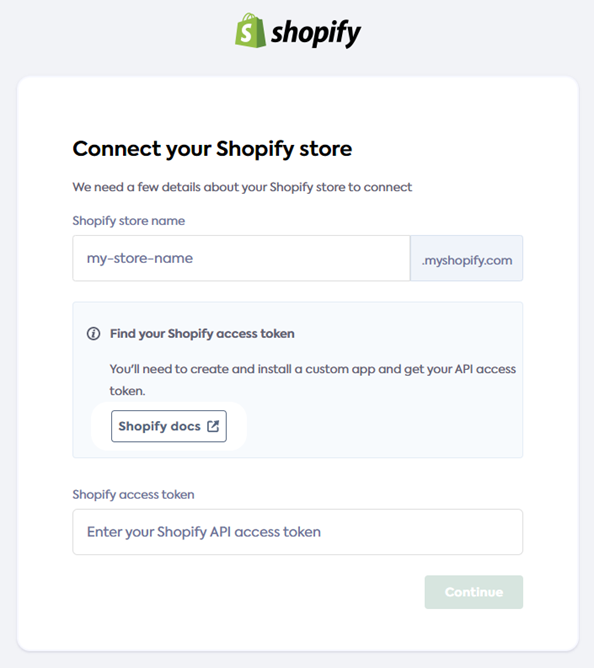
The merchant is asked to create and install a custom app in their Shopify admin account and get its APIAPI A set of rules and protocols that allows different software applications to communicate with each other. Codat provides APIs for accessing financial data from accounting, banking, and commerce platforms. access token.
The UI contains a linkLink The authorization flow that allows end users to connect their accounting, banking, or commerce platforms to your application via Codat. to the Custom apps page in the Shopify Help Center. The merchant needs to complete the following tasks in the Help article:
-
Enable custom app development from the Shopify admin
-
Create and install a custom app
-
Create the app
-
Select APIAPI A set of rules and protocols that allows different software applications to communicate with each other. Codat provides APIs for accessing financial data from accounting, banking, and commerce platforms. scopes
The merchant must assign the following APIAPI A set of rules and protocols that allows different software applications to communicate with each other. Codat provides APIs for accessing financial data from accounting, banking, and commerce platforms. scopes to their custom app:
read_customers, read_inventory, read_orders, read_products, read_shopify_payments_disputes,
read_shopify_payments_payouts -
Install the app and get the APIAPI A set of rules and protocols that allows different software applications to communicate with each other. Codat provides APIs for accessing financial data from accounting, banking, and commerce platforms. access tokens
Next, the merchant needs to:
-
Enter their store name in the Shopify store name field in the store connectionConnection A link between a Codat company and a data source (like an accounting platform). Each connection represents authorized access to pull or push data from that platform. UI.
-
In Shopify, copy the Admin APIAPI A set of rules and protocols that allows different software applications to communicate with each other. Codat provides APIs for accessing financial data from accounting, banking, and commerce platforms. access token for the custom app that they created.
-
Enter the token in the Shopify access token field in the store connectionConnection A link between a Codat company and a data source (like an accounting platform). Each connection represents authorized access to pull or push data from that platform. UI.
-
Click Continue to submit the store name and access token to Codat.
The LinkLink The authorization flow that allows end users to connect their accounting, banking, or commerce platforms to your application via Codat. success screen is displayed if the custom app was connected successfully.
Overview of integration setup
To set up the Shopify integration using custom apps, you'll need to:
- Check the required permissions for merchants.
- Configure the Shopify integration without entering any credentials, and then enable it.
- Check the commerce syncSync The process of fetching the latest data from a connected data source. Syncs can be triggered manually or run automatically on a schedule. settings
- Send LinkLink The authorization flow that allows end users to connect their accounting, banking, or commerce platforms to your application via Codat. URLs to your merchants.
Required permissions for merchants
Merchants must have the following permissions to connect their Shopify store and share commerce data.
-
The Enable app development permission (required to enable custom app development).
-
The Develop apps permission.
-
Any staff permissions which are required by the required APIAPI A set of rules and protocols that allows different software applications to communicate with each other. Codat provides APIs for accessing financial data from accounting, banking, and commerce platforms. scopes (see step four in the merchant connectionConnection A link between a Codat company and a data source (like an accounting platform). Each connection represents authorized access to pull or push data from that platform. flow above).
Configure the Shopify integration for use with custom apps
To configure the Shopify integration for use with the custom apps approach:
-
In the Codat Portal, go to the Commerce integrations page.
-
Locate Shopify and select Manage to view the Integration settings page.
-
Leave the App URL, Client ID, and Client secret fields blank.
-
Leave the Has request to read all orders toggle switched off.
Orders read by defaultAll orders are available to read from Shopify by default when using the custom apps connectionConnection A link between a Codat company and a data source (like an accounting platform). Each connection represents authorized access to pull or push data from that platform. method.
-
Click Save.
-
Enable the integration by setting the toggle to Enabled.
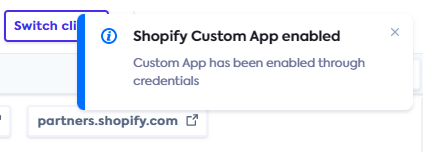
If the integration was enabled successfully, the Shopify Custom App enabled message is displayed at the top right:
Check the commerce syncSync The process of fetching the latest data from a connected data source. Syncs can be triggered manually or run automatically on a schedule. settings
All commerce data types must be enabled before you can read commerce transactions from Shopify to Codat. Follow the steps in Commerce sync settings; you only need to do this once.
Next steps
Test your Shopify integration before sending LinkLink The authorization flow that allows end users to connect their accounting, banking, or commerce platforms to your application via Codat. URLs to merchants.